
Managing Jobs
The Job is the central record in FabWise job costing. It's where quotes, time tracking, costs, invoices, and customer communication all come together. This is the overview — what a job is, the stages it moves through, and how to manage it day-to-day.
Why it matters
If you use FabWise for time tracking only, jobs are optional. If you use FabWise for job costing — knowing what each project costs, what it earned, and whether you priced it right — jobs are the central record.
Each job links together:
- The customer and their contact at the company
- The quote and any revisions
- The purchase orders you issued to vendors
- The time workers tracked against it (via tasks)
- The final invoice and any change orders
- The comments and history of how the work unfolded
Get jobs right and your end-of-month job-cost report tells you which work types make money and which ones bleed.
The seven stages
A job moves through seven stages in roughly the order work happens:
- Inquiry — a customer asked about the work. Nothing committed yet. This is where converted Leads land. Inquiries are excluded from pipeline value (an unqualified inquiry shouldn't inflate committed metrics).
- Quote — you've started or sent a quote. The customer hasn't accepted.
- Scheduled — quote accepted, work scheduled, not yet on the shop floor.
- Production — work is happening. Workers are tracking time against this job.
- Quality — production is done, in QA / inspection / final fit-up.
- Delivery — work is going to the customer (shipping, installation, pickup).
- Complete — done, invoiced, closed.
Jobs move forward when you click the lifecycle action button on the job detail page. Most stages have one obvious next step; some have a few options (e.g., put a job on hold mid-Production).
A job can also be on hold at any stage — a separate state, not a stage. Use it when work pauses for a customer reason (waiting on a deposit, waiting on a drawing approval, customer changed mind). Time tracking against a held job is blocked.
The stages are designed around the physical reality of the work, not the sales funnel. "Quoted" and "Accepted" used to be separate stages — they're now just facets of the Quote stage (a quote has an issued state and an accepted state, see Quotes and Invoices).
Creating a job
Three paths in:
From a Lead — when you Convert a lead, FabWise creates the Customer, Contact, and Job in one transaction. The job lands at Inquiry stage. This is the most common path for net-new work.
Manually from a Customer — open the customer, click New Job. FabWise pre-fills the customer; you fill in the project name and description. Land at Inquiry stage. Use this for repeat customers who called you directly without going through the portal.
Manually from the Jobs index — Admin → Jobs → New Job. You'll pick the customer (or create one) and fill in the rest. Use this for jobs that don't have an obvious starting customer yet.
Required fields when creating:
- Identifier (auto-generated, edit if you have your own job number scheme)
- Project name — what you'd call it in conversation ("XYZ tank weldment", "ACME chassis run")
- Customer — the company
- Status — defaults to Inquiry
Everything else (description, target dates, scheduling) can be filled in as the job progresses.
The new-job form also offers Estimated Job Value — a ballpark of what the whole job is worth to the customer. It's optional, and skipping it never blocks the save. It's worth a guess, though: the value is what powers margin, win-rate, and "what's this shop worth" reporting, and it's much easier to type the number while it's in your head than to go back later. Issuing a real quote replaces whatever you typed here with the quote total. Don't confuse it with Estimated Labor Cost, right next to it — that one is your internal cost, not what the customer pays.
The job detail page
Open any job to see the full record. The page has a header plus four tabs:
- Header — identifier, name, customer, the stage pipeline, lifecycle action button, hold/un-hold
- Overview — machine time, schedule status, and the job's activity feed and internal comments (not visible to the customer)
- Quote — quote details, revisions, issued documents, accepted state
- Documents — drawings, customer files, internal notes
- Performance — schedule status, labor breakdown by worker and labor code, recent task activity, and the full cost picture (labor cost, purchase orders, profit against quote)
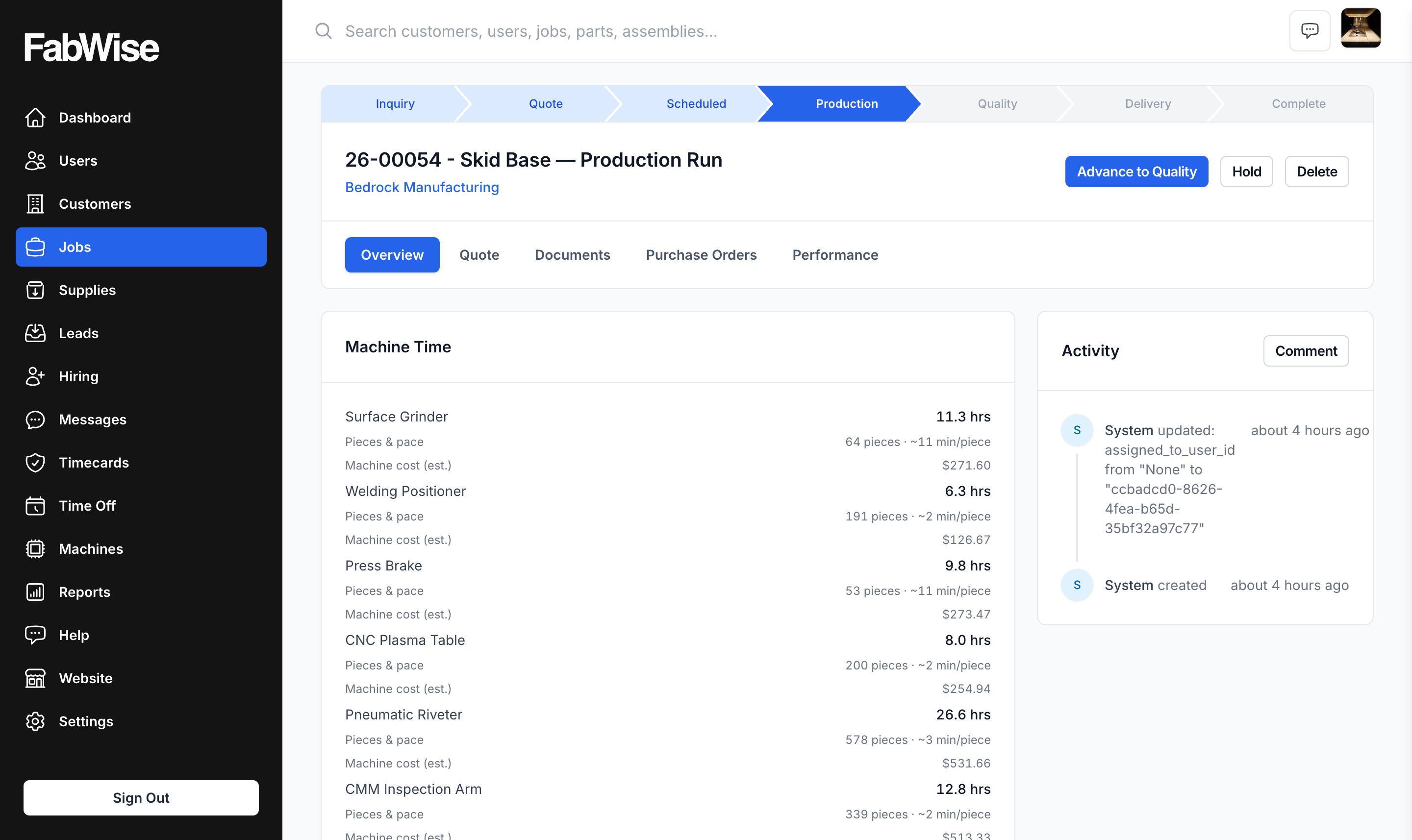
The header has the action you most likely need next. If a job is in Inquiry stage, the header button is "Send Quote" or "Move to Quote." If it's in Production, the button is "Move to Quality." Always works left to right through the seven stages.
Moving a job forward
Two ways:
Lifecycle action buttons — the obvious next step lives in the header (and sometimes inline on the job page). Click and the job advances. FabWise asks for a reason in a few cases (e.g., putting on hold) but mostly just moves cleanly.
Edit the status directly — if you need to skip a stage or go backwards (e.g., bumping a job from Production back to Quote because the customer changed the scope), edit the job and pick the status from the dropdown. The activity log records the change with your name.
Backwards moves are legal — they happen in real shops — but they're tracked, so your end-of-month metrics aren't distorted by people gaming the pipeline.
Putting a job on hold
When work needs to pause for an external reason (waiting on customer approval, vendor delay, material issue):
- Open the job
- Click Put on Hold in the header
- Pick a reason (waiting on customer, waiting on vendor, internal issue, etc.) and add a note
- Save
The job's status stays where it is (e.g., still "Production"), but it's flagged as on hold. Workers can't track new time against a held job. The hold is recorded with the start time and reason.
When the blocker is resolved, click Remove Hold and work resumes.
Closing a job
When the work is done, the customer is paid, and there's nothing left:
- Open the job
- Move it through the final stages: Quality → Delivery → Complete
- Confirm the final invoice was issued (see Final Invoice)
A job at Complete stage is closed. It stays in your account for history, reports, and audit. You can re-open if you need to (a warranty issue, a follow-up order against the same project).
Don't delete completed jobs. The hours, labor cost, and revenue are inputs to your historical reports. Deletion is for jobs created in error.
Filtering and finding jobs
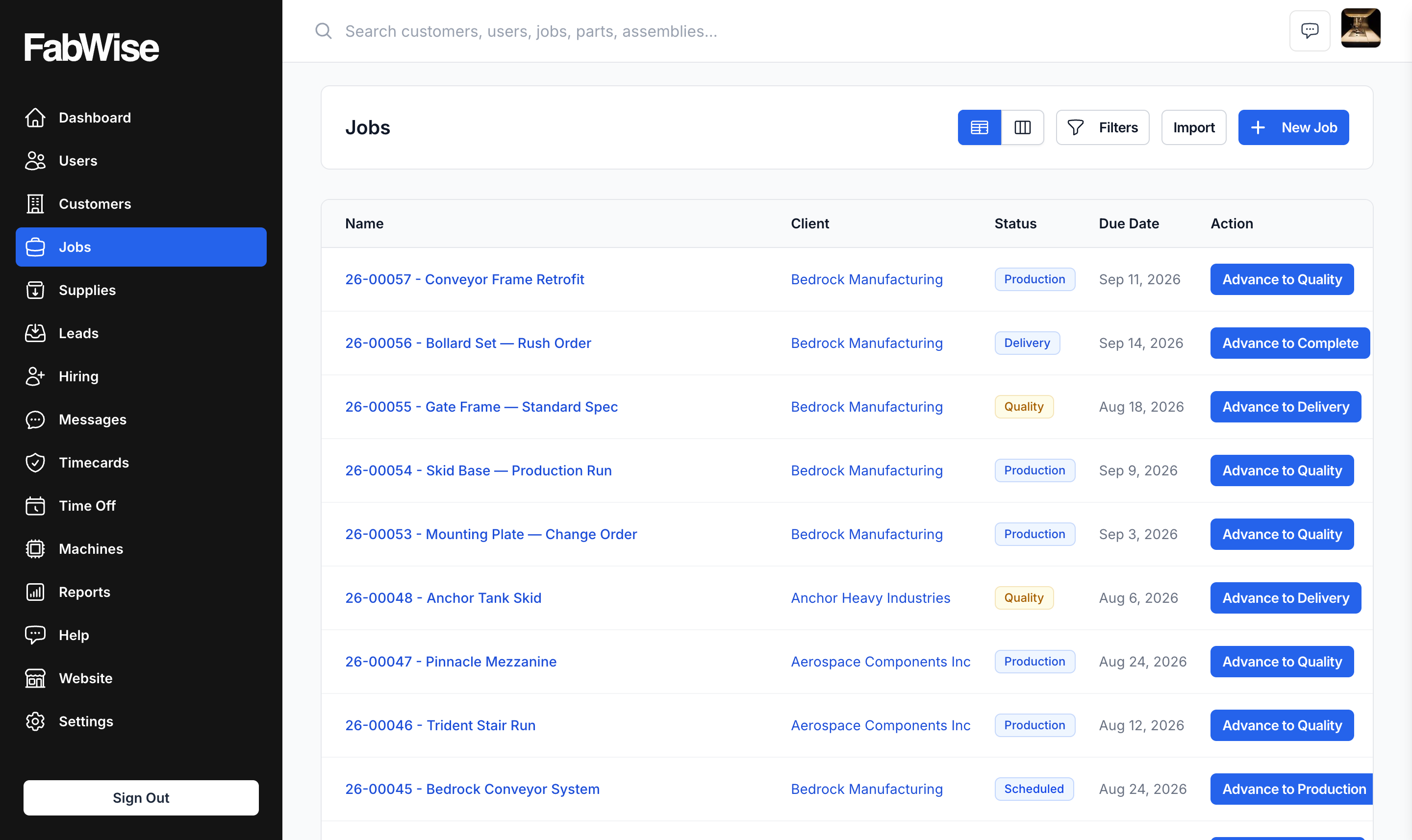
The Jobs index supports:
- Status filter — by current stage
- Pipeline views:
- Pre-production (Inquiry + Quote stages) — what's in your sales pipeline
- In production (Scheduled + Production + Quality + Delivery) — what's currently in flight
- Committed (all active stages except Inquiry) — your committed work value
- Kanban view —
?view=kanbanshows jobs in columns by stage, drag-and-drop to move - Search — by identifier, project name, customer name
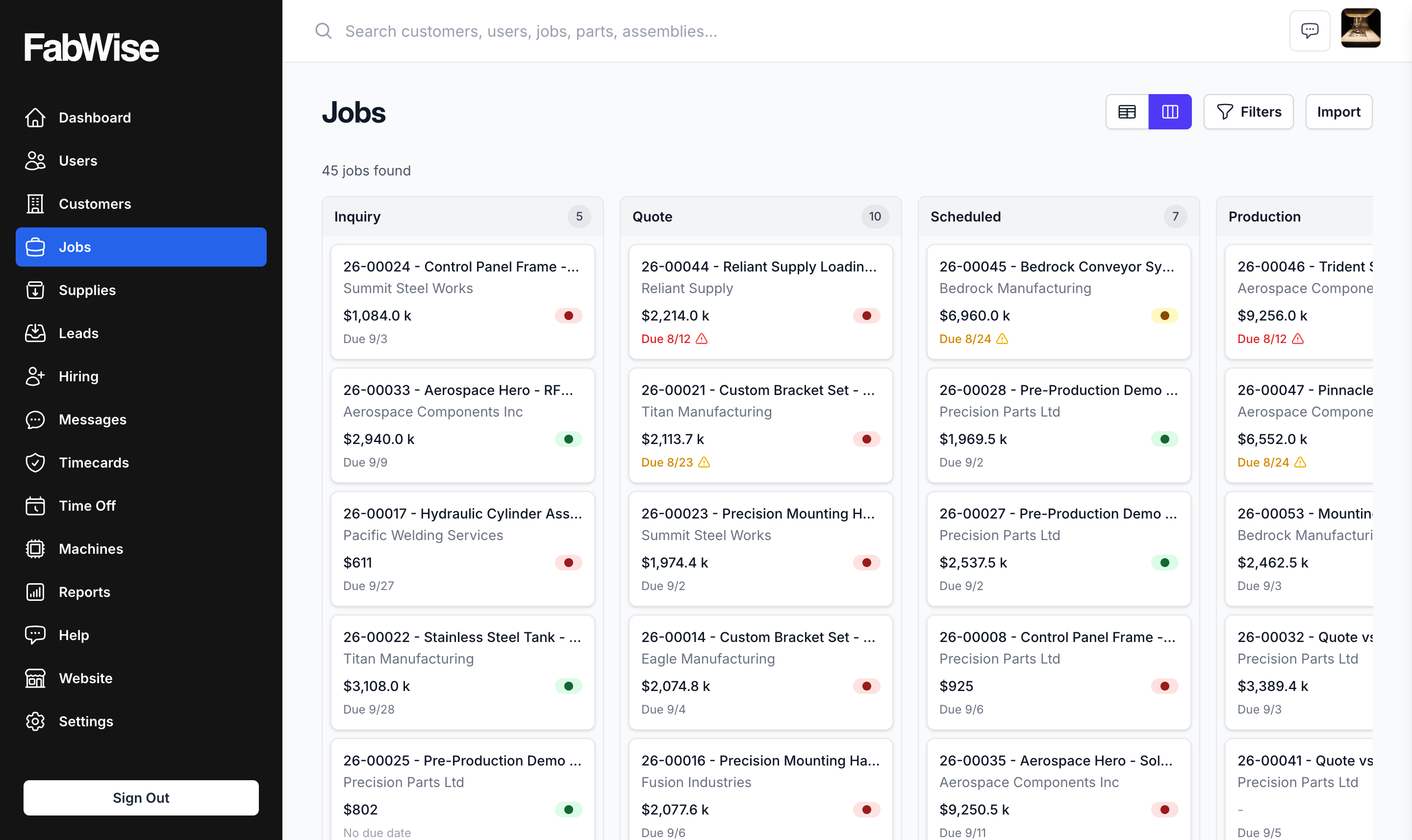
For a high-level shop-floor view, the kanban is the right tool. For paying attention to a specific stage, use the pipeline filter.
The job cost picture
What does this job actually cost you? Open the job and click the Performance tab — the cost picture lives there, alongside the labor breakdown.
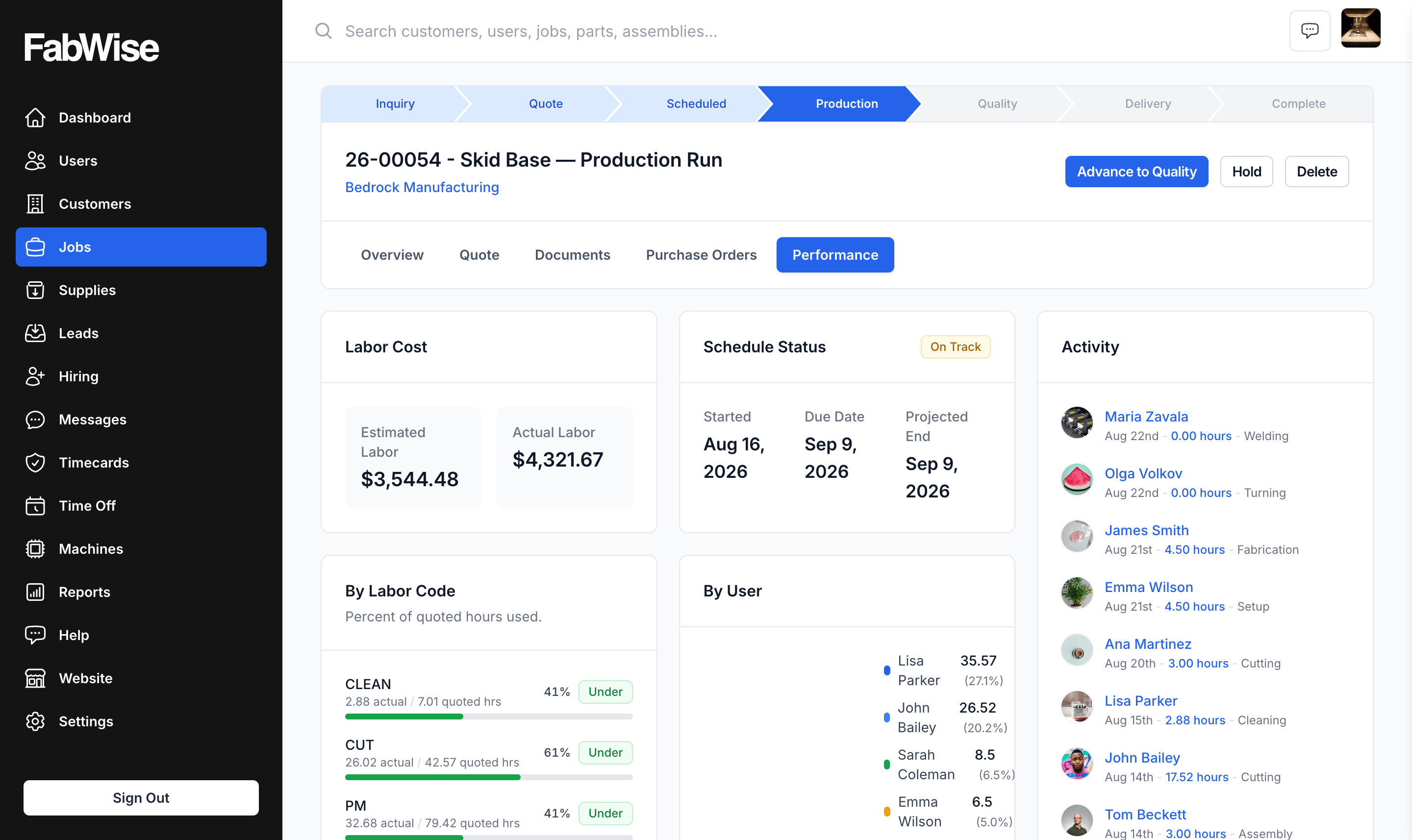
You'll see:
- Quoted labor hours by labor code — what you priced
- Actual labor hours by labor code — what workers tracked (via tasks)
- Labor cost — actual hours × each worker's hourly rate, snapshotted at the time of the task
- Purchase order totals — what you spent on materials and outsourcing
- Total job cost vs. quoted amount — are you above or below?
- Profit / margin — once the invoice is issued
The cost numbers are real-time — every time a worker reports a task against this job, the numbers update.
Labor cost uses the rate snapshot at the time of the task, not the worker's current rate. If you raise a worker's rate halfway through a job, the early tasks still cost the old rate. The job's cost picture is historically accurate, not retroactively rewritten.
For more on how hours flow into job costs, see Tasks and Time Tracking.
Common questions
What's the difference between a Customer and a Job?
A Customer is a company. A Job is a specific project for that customer. One customer can have many jobs over time — that's the most common pattern for repeat shops.
Can I have multiple quotes on one job?
Yes — quote revisions live within the job. The accepted revision becomes the "live" quote that drives scheduling and final invoicing. See Quotes and Invoices and Change Orders.
What happens when a worker tracks time against a job that's on Hold?
They can't. Workstation prevents new task starts against held jobs. If a worker has an active task on a job when it goes on hold, they finish that task and then can't start a new one until the hold is removed.
How do I delete a job?
From the job detail page, click Delete. Only do this for jobs created in error (test data, duplicate entries). Don't delete completed jobs — you lose the history.
My customer wants to combine two separate projects into one — what do I do?
Pick the surviving job. Close the other one with a note explaining the consolidation. Manually adjust the surviving job's quote to reflect the combined scope. There's no built-in merge tool today.
How do I track work that doesn't belong to a customer (shop maintenance, training, meetings)?
Use internal tasks. Workers can log time against an internal code (no job) for non-customer work. See Tasks and Time Tracking for the full pattern.
What if a customer reorders the same thing I made for them last year?
Don't reopen the old completed job. Create a new job under the same customer (re-using the previous job's quote as a starting point if you want — see Quotes and Invoices for duplication). Treating each new order as its own job keeps costs and timing clean.
Where to find it
- Jobs index: Admin → Jobs
- Kanban view: Admin → Jobs → switch to Kanban
- Production pipeline: Admin → Jobs → Production
- Sales pipeline: Admin → Jobs → Sales
- Create a job: Admin → Jobs → New Job (or from a Customer, or from a converted Lead)
- Who can manage jobs: account owners, admins, managers
- Job stages: Inquiry → Quote → Scheduled → Production → Quality → Delivery → Complete
- Hold state: orthogonal to stage, blocks new task tracking
Related
- [Quotes and Invoices](quotes-and-invoices.md)
- [Tasks and Time Tracking](tasks-and-time-tracking.md)
- [Change Orders](change-orders.md)
- [Deposits](deposits.md)
- [Final Invoice](final-invoice.md)
- [E-Acceptance](e-acceptance.md)
- [Managing Leads](../admin/managing-leads.md)