
Common Issues and How to Fix Them
A grab-bag of the most-asked questions and how to resolve each. Skim the headings and jump to the one that matches what you're seeing.
Why this exists
Most problems in FabWise have a known answer. The detailed help articles cover features in depth; this one is the fast-lookup index for "something's wrong right now."
If you don't find your issue here, check the related article for the feature, or contact support.
Kiosk
A worker's name isn't showing on the kiosk
Cause: The worker isn't set up to track time, isn't in an active department, or is marked inactive.
Fix: Open the worker in Admin → Users. Confirm:
- Kiosk access is on (their profile → Devices tab)
- Department is set and the department is active
- Status is Active (not Inactive or Terminated)
- The worker has a PIN (also on the Devices tab)
A worker's PIN isn't working
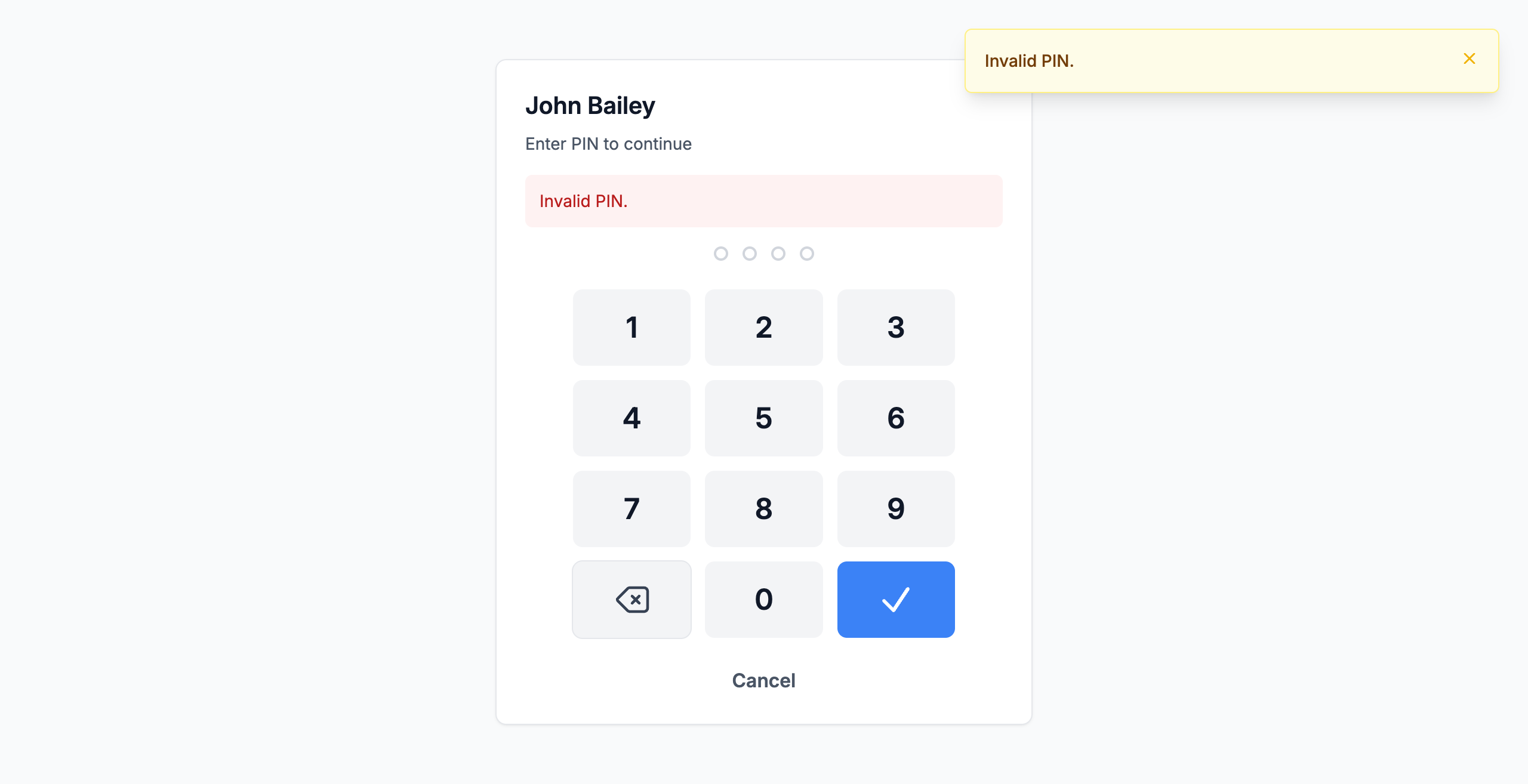
Cause: Typo on the original setup, a recent reset they don't know about, or the account is locked after failed attempts.
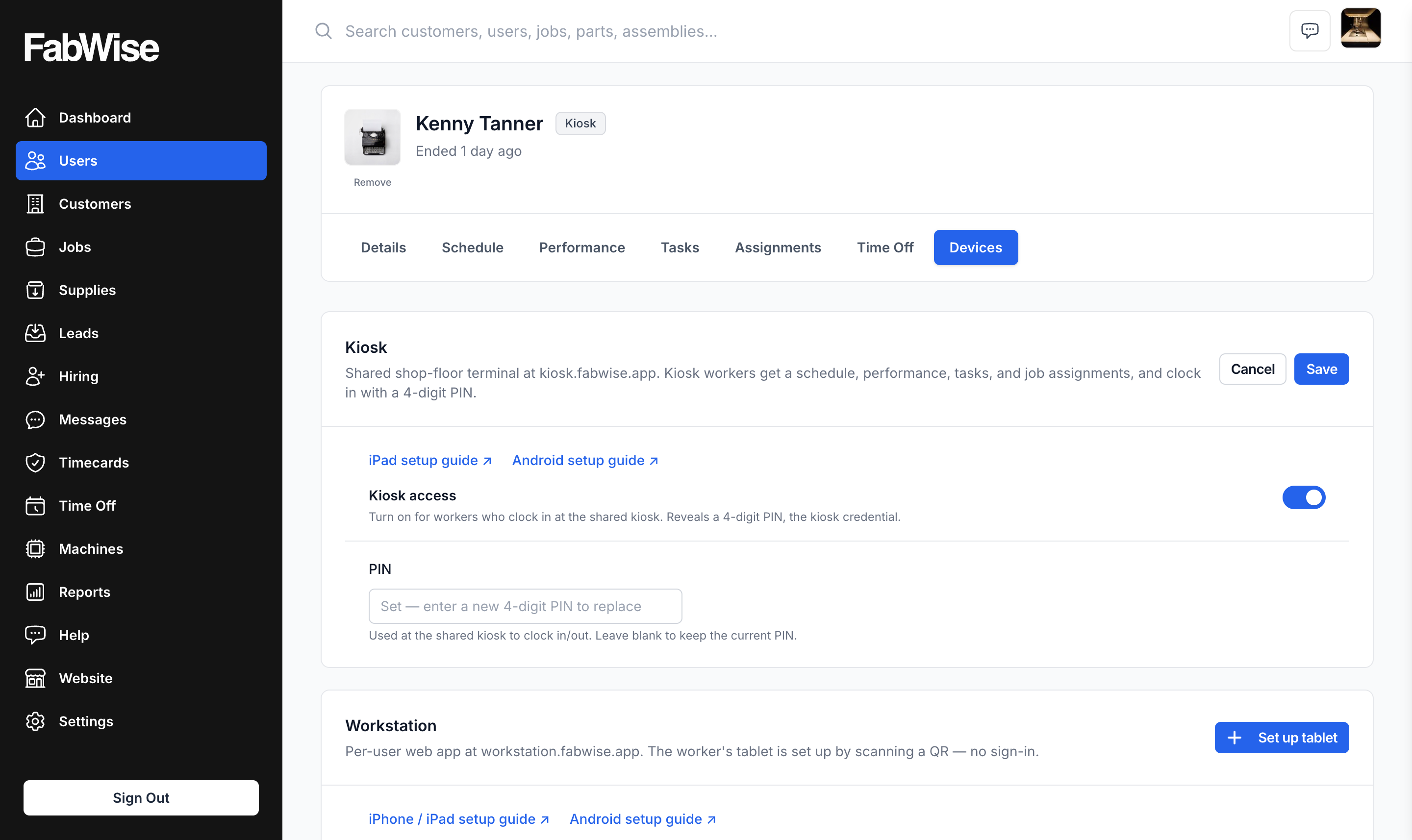
Fix: Open the worker in Admin → Users → their Devices tab. Click Edit on the Kiosk card and type a new PIN in the PIN field (it's a password field — you can't see the existing PIN, only set a new one). Save. Tell the worker their new PIN privately.
If you suspect the account is locked from 5 failed attempts, resetting the PIN clears the lock.
Multiple workers can't clock in — screen says "Service Unavailable"
Cause: Network outage or the kiosk tablet lost Wi-Fi.
Fix:
1. Open Settings on the tablet, confirm Wi-Fi is connected.
2. If Wi-Fi is fine but the kiosk still errors, the FabWise service may be having a problem. Check the status page or contact support.
3. In the meantime, workers can clock in via Workstation on their phone if they have it set up. Otherwise, fall back to writing down arrival times on paper and entering them when service is back.
The kiosk screen turns off during the day
Cause: "Stay awake while charging" isn't enabled on the tablet, or the tablet isn't actually charging.
Fix: Follow the appropriate tablet setup guide:
- Set Up an Android Tablet for the Kiosk (Step 3)
- Set Up an iPad for the Kiosk (Step 2 — Auto-Lock to Never)
Also confirm the tablet is plugged into a working outlet.
The kiosk got closed and shows the Android/iPad home screen
Cause: Someone hit the home button or swiped up.
Fix: Tap the FabWise Kiosk icon on the home screen to relaunch. To prevent this happening repeatedly, enable Screen Pinning (Android) or Guided Access (iPad). See the tablet setup guides.
Shifts and time tracking
A worker forgot to clock in this morning
Cause: They started working without tapping the kiosk.
Fix two ways:
- Worker fixes at the kiosk: when they tap Start Shift, they pick the "Forgot to clock in" option. FabWise records the shift as starting at the scheduled time, not the current time. Supervisor reviews and approves.
- Supervisor fixes after the fact: open the shift from Admin → Timecards (open the week, then the shift), set the final start time to what it should be. The audit log records the correction.
A worker forgot to clock out at end of shift
Cause: They left without tapping.
Fix: Open the shift from Admin → Timecards (open the week, then the shift). Set the final end time to when they actually left. Save. The audit log records who corrected it and when.
The original tap time (none, in this case) is preserved separately; you're setting the "final" time that drives payroll.
A worker's meal break was recorded wrong
Cause: Meal breaks aren't tapped on the kiosk — when a worker ends their shift, FabWise asks whether they got their full meal break, and the answer lands on the shift. A wrong answer (or a skipped question) is the usual cause.
Fix: Open the shift in Admin → Timecards and correct the meal-break status (taken or skipped). The worker's original answer stays on the record; your correction is separate and auditable.
A shift is flagged for review and I don't know why
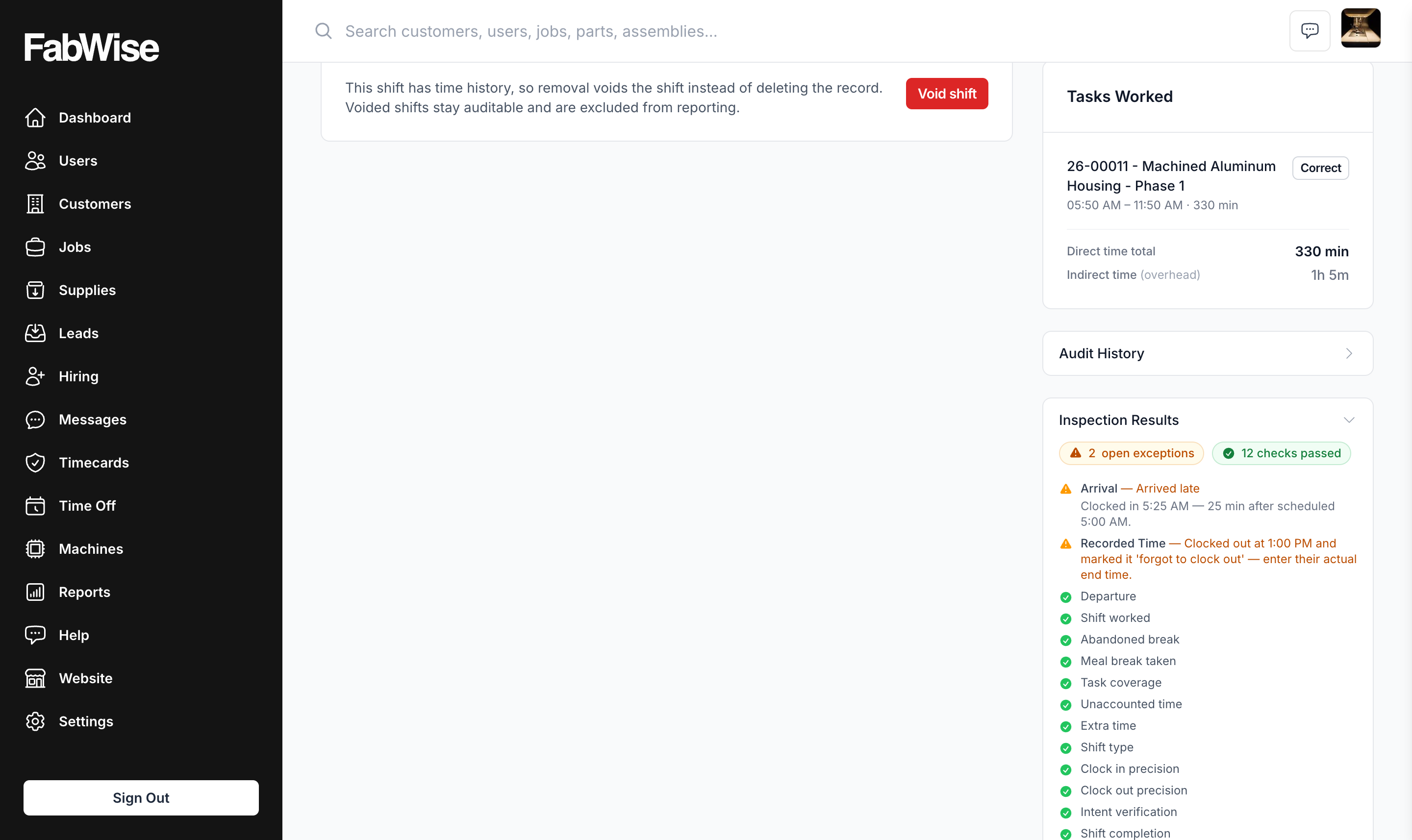
Cause: Something in the shift triggered a review rule (late arrival without intent, missed meal break, exceeded max shift length, unscheduled shift, overtime).
Fix: Open the shift detail. The inspection results panel lists each rule that triggered and why. Address each one — usually that means accepting the captured times, correcting them, or adding a note for the audit trail.
For the full review pattern, see Reviewing and Approving Shifts.
A worker's hours don't match what they actually worked
Cause: Either the captured times are wrong (they tapped at the wrong time) or supervisor adjustments are off.
Fix: Open the shift. You'll see two time sets:
- Captured — what they tapped at the kiosk (immutable)
- Final — what counts for pay (you can adjust)
Edit the final times to match reality. If the worker disputes, the audit log shows every change with attribution.
A worker disputes their hours
Cause: Disagreement between captured times, supervisor adjustments, and what they remember.
Fix: Open the shift in admin. Show them:
1. The tap times (these are immutable record)
2. Any supervisor corrections, with who made them and when
3. The final times used for pay
If the supervisor correction was wrong, fix it. If the worker is wrong, the audit trail speaks for itself. Document the conversation in the shift's comments.
Schedules
A worker's schedule is wrong on the kiosk
Cause: They're in the wrong department, the department has the wrong schedule, or they have a personal schedule override that's set incorrectly.
Fix: Open the worker in Admin → Users:
1. Check Department is correct
2. Check the Schedule field. "Inherit from Department" uses the department schedule. If it's set to a specific schedule, that overrides the department.
3. After fixing, the system regenerates upcoming shifts automatically (it fires a ScheduleRebuildJob on schedule change).
Workers aren't seeing their shifts at all
Cause: The schedule wasn't rebuilt after a change, or the schedule has no entries for upcoming dates.
Fix: Admin → Settings → Scheduling → Schedule actions → click Rebuild Schedule. This regenerates future shifts from the current template.
A schedule change didn't take effect
Cause: Same as above — the rebuild job may not have run yet.
Fix: Manually trigger Rebuild Schedule. If the change still doesn't appear, contact support.
Workstation
A worker's device lost Workstation access
Cause: Their device was never set up, its access was revoked, or they're using a different device than the one that was set up.
Fix: Generate a new setup QR code (Admin → Users → [worker] → Devices → Set up tablet). Scan it with the camera on the device they'll use and tap Set up this tablet — no sign-in needed. The old device stops working at the same time — Workstation is one device per worker by design.
"This link has expired" when a worker tries to enroll
Cause: The setup link expired. Setup QR codes and links are single-use and valid for 24 hours.
Fix: Generate a new one from the worker's Devices tab.
A worker says they got a new phone and want to use Workstation on it
Cause: Their old phone is the active device.
Fix: Generate a new setup QR code (Set up tablet on their Devices tab). Scan it on the new phone. The old phone stops working.
Leads and Customer Portal
Someone said they submitted a quote request but I don't see a lead
Cause: Spam blocker filtered the lead notification email, or the submitter hit an error and the form didn't actually go through.
Fix:
1. Check the spam folder of the account email.
2. Check Admin → Leads directly — if the lead is there but the email wasn't received, it's a spam-filter issue.
3. If the lead isn't in your inbox at all, ask the submitter to try again. The form may have errored.
Leads are coming in but I'm not getting notified
Cause: Email going to spam, or push notifications not set up.
Fix:
- Check spam. Mark FabWise emails as not-spam.
- For push notifications, the per-supervisor notification preferences live on the User edit form (Admin → Users → [your profile] → Notifications section). Confirm push categories are enabled.
My public portal page shows "Not found"
Cause: Either Public listing isn't enabled, or the portal slug isn't set.
Fix: Admin → Website → Edit. Confirm:
- Public listing is checked
- Website URL Slug is set
- Save
Payroll export
A worker doesn't appear in my payroll export
Cause: Their shifts are flagged for review and not yet approved. Only approved shifts are ready for payroll.
Fix: Go to Admin → Timecards, open the week, and work through the shifts needing a decision. Re-export.
Payroll export shows wrong hours
Cause: A supervisor correction wasn't saved, or you're exporting a shift that's still flagged.
Fix:
1. Open the worker's shifts in admin for the pay period
2. Confirm each shift's final times are correct
3. Re-export
The CSV import into my payroll provider failed
Cause: Column format mismatch between FabWise's export and your provider's importer.
Fix: Open the CSV in a spreadsheet. Compare the column headers to what your payroll provider expects. You may need to:
- Rename columns
- Reorder columns
- Save as a different format (.xlsx instead of .csv, for example)
- Use the provider's "map columns" step in their import wizard
For the column reference, see Exporting Hours for Payroll.
Supervisor workflow
A supervisor is on vacation and shifts are piling up in the review queue
Cause: Only the assigned supervisor (or admins) can review their direct reports' shifts.
Fix:
1. Admins can review any shift, regardless of supervisor assignment. If you're an admin, just process them.
2. For ongoing absences, reassign the worker's supervisor temporarily (Admin → Users → [worker] → Supervisor field) to someone present.
I can't see a worker's shifts
Cause: You're a supervisor, not an admin, and the worker isn't assigned to you.
Fix: Either ask the worker's actual supervisor to handle, or ask an admin to reassign you temporarily.
Account-level
I can't sign in to the admin console
Fix: FabWise is passwordless — there is no admin password to remember. On the sign-in page, enter your email address and we'll send you a sign-in link; open it on the same device to sign in. If you don't receive the link or no longer have access to that email, write to [email protected] — the in-app ticket form needs you signed in, so email is the way in for this one.
My account is locked / I can't sign in at all
Fix: Write to [email protected]. Don't keep trying — repeated failed attempts can lock the account harder. This is the one case email beats a ticket: opening a ticket requires signing in, which is exactly what isn't working.
I want to add another admin
Fix: Admin → Users → Add User. Create them by name, then set their Role to Admin and add their email on their profile. They sign in at admin.fabwise.app with an emailed link.
I want to delete the account
Fix: See Delete Account in the Privacy section. Account deletion is permanent — make sure you've exported any data you want to keep first.
When to contact support
Most issues above have direct fixes. Contact support for:
- Service-level problems (you can't sign in at all, the kiosk is failing for multiple workers, you suspect data corruption)
- Account-level changes (changing the account owner, merging accounts, restoring deleted data)
- Bulk operations (importing 50+ workers from CSV, migrating from another time clock system)
- Bugs you've found in the product
- Anything that feels weird and you can't explain
If you can sign in, open a ticket: Help → Talk to a person → Contact support, or ask Foreman for a person and press the Contact support button it offers. A ticket carries your account context, so whoever picks it up can see the shop you're asking about. Replies land on the same Help page, where your tickets are listed, and we email you when one arrives.
If you can't sign in at all, write to [email protected]. That mailbox has no account context, so it's the way in for sign-in problems rather than the fast lane for everything else.
Related
- [Reviewing and Approving Shifts](../admin/reviewing-and-approving-shifts.md)
- [Shift Review](../time-tracking/shift-review.md)
- [How Hours Roll Up to Payroll](../time-tracking/how-hours-roll-up-to-payroll.md)
- [Managing Users](../admin/managing-users.md)
- [Enroll a Worker for Workstation Access](../admin/enrolling-workers-for-workstation.md)
- [Schedules](../admin/scheduling.md)