
Your First Day on the Kiosk
What to expect the first time you use the FabWise kiosk. Find your name, enter your PIN, start your shift. That's it.
Why it matters
The kiosk is how you start and end every shift, take meal breaks, and track personal time at FabWise. It's the same screen everyone in the shop uses — shared, simple, and built so you spend less than 10 seconds on it per tap.
The first time can feel new. After that, it's automatic.
What you'll need
- Your PIN — a 4-digit number your admin gave you when you were added to FabWise. If you don't have one, ask your admin.
That's it. No password, no badge, no app to install. Walk up and tap.
Starting your shift
When you arrive for the day:
Walk up to the kiosk. It's a tablet mounted somewhere in the shop — usually near the front door, by the time clock if there used to be one, or at a workstation.
Find your name. The kiosk shows a list of workers. Names are sorted by who's scheduled soonest, so your name should be near the top when it's your shift time.
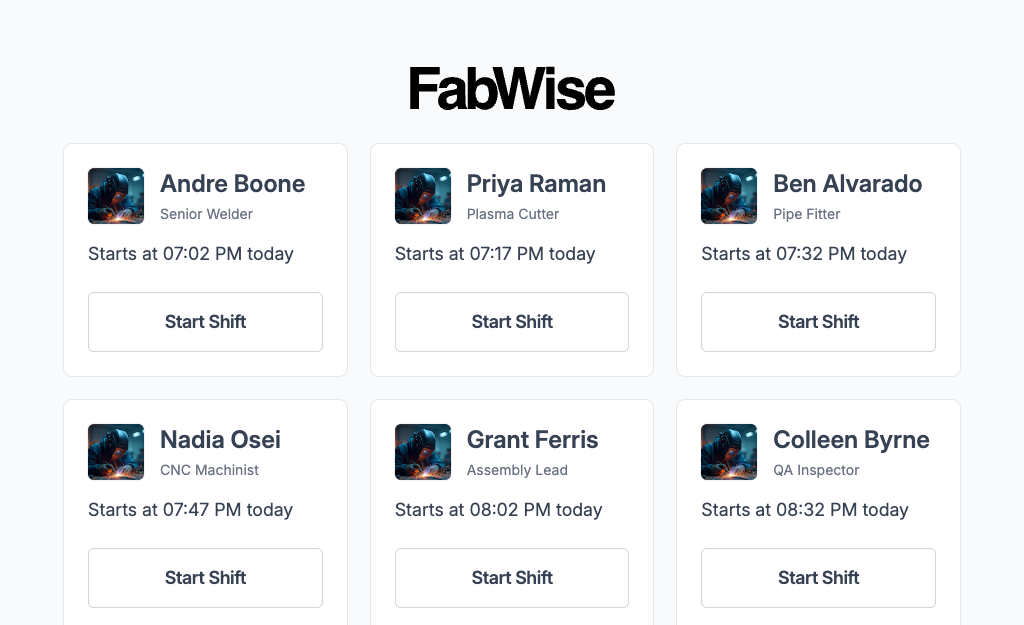
Tap your name.
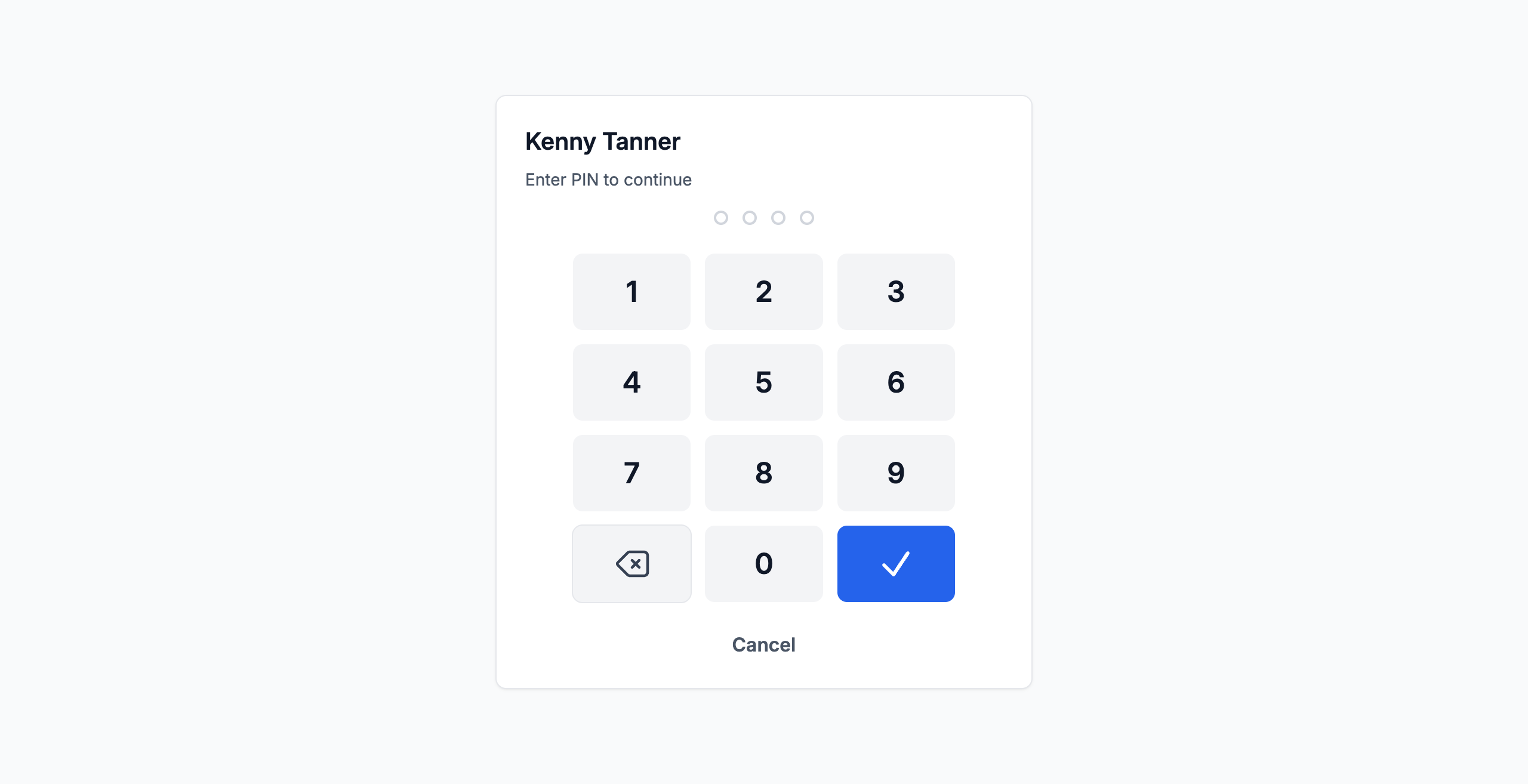
Enter your PIN. Four digits on the keypad, then the check mark to submit.
Pick your shift. If you have one shift scheduled today, FabWise selects it automatically. If you have several, tap the right one. If nothing is scheduled, you can start an unscheduled shift.
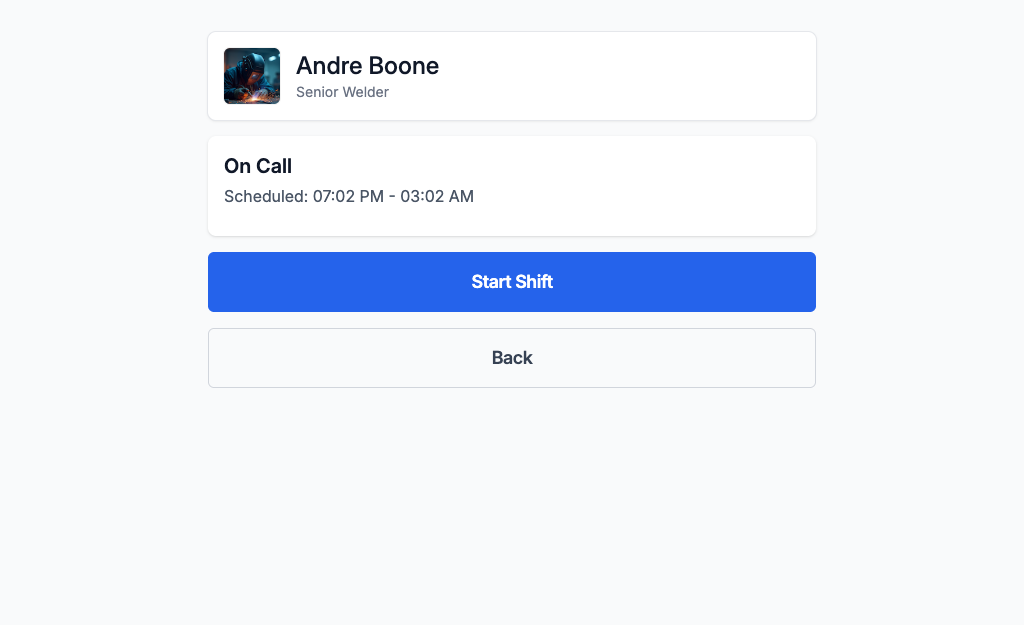
Confirm your timing. Depending on when you tapped, FabWise might ask:
- On time — your scheduled start time matches now. No prompt — just go.
- Arrived early, waiting — you're early and you want to wait for your scheduled start. Pick this and FabWise records your shift as starting at the scheduled time, not now.
- Starting now (early) — you're early and want to start working immediately. Pick this and your shift starts at this moment.
- Arrived late — you're past your scheduled start. Confirm and FabWise records the actual time.
- Forgot to clock in — you've been working but forgot to tap in earlier. Pick this and your shift records as starting at the scheduled time.
Done. You'll see a confirmation. Walk away.
You're now on the clock. FabWise is tracking your time.
Taking a meal break
You don't tap anything on the kiosk for your meal break — there is no meal break button. Take your meal when work allows.
When you end your shift, FabWise asks whether you got your full meal break. Answer honestly — your answer is recorded on your shift, and your supervisor sees it during review.
For more on breaks, see Breaks.
Personal time
If you need to step away during your shift for a personal reason — appointment, errand, phone call — track it as Personal Time so your time records are accurate.
- Walk up to the kiosk.
- Tap your name, enter your PIN.
Tap Start Personal Time (under the "Breaks" divider).
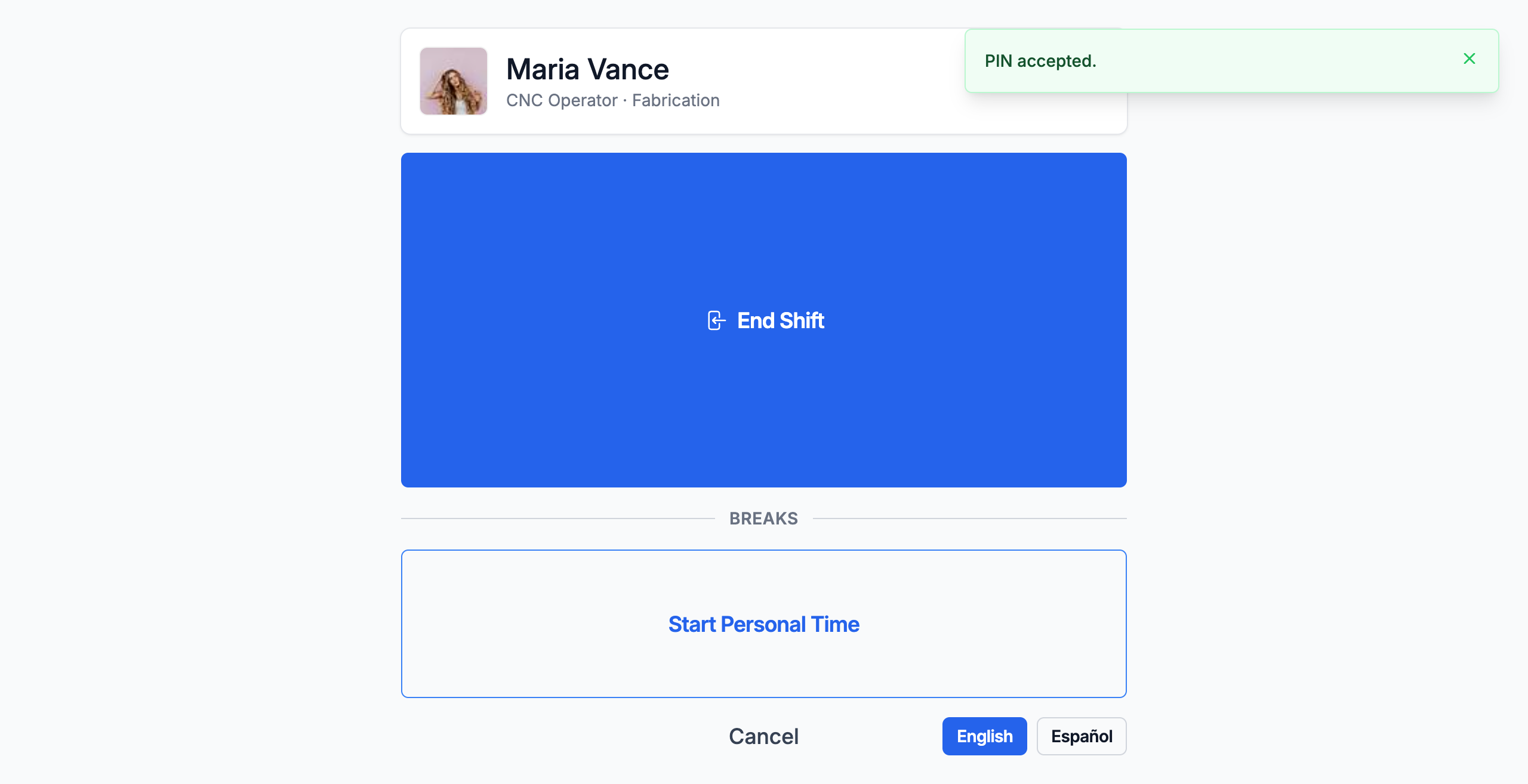
When you come back, repeat and tap End Personal Time.
Personal time isn't paid time — it's unpaid time off the clock during your shift, recorded so you and your supervisor know where the time went.
For more, see Personal Time.
Ending your shift
When your work day is done:
- Walk up to the kiosk.
- Find your name and tap it.
- Enter your PIN.
- Tap End Shift.
If you didn't take your meal break, FabWise asks if you forgot or if you worked through it. Answer honestly — your supervisor sees the answer when they review your shift.
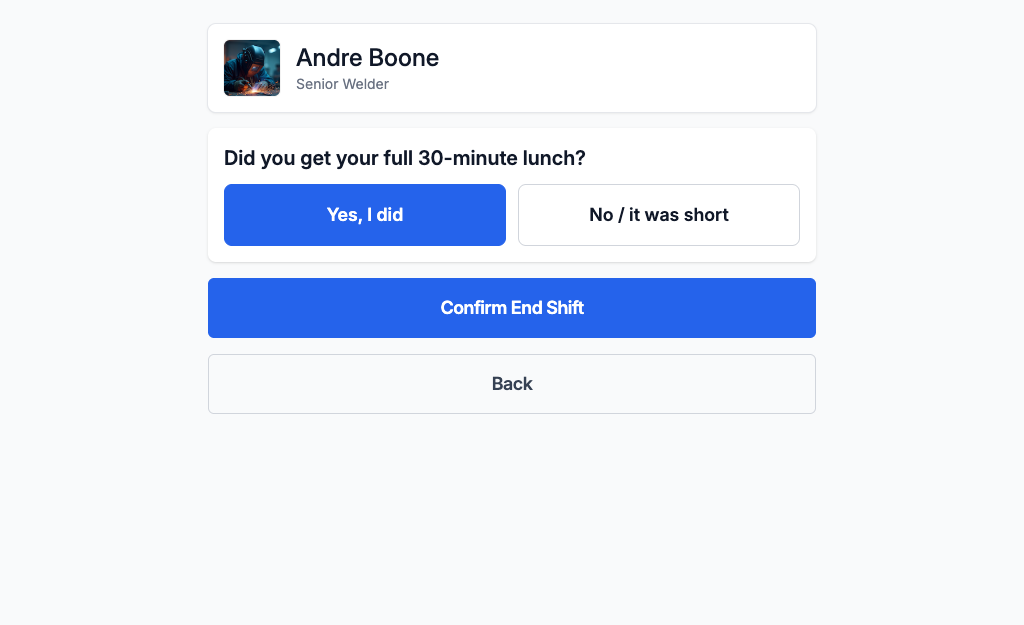
That's it. You're off the clock.
For more, see End Shift.
Common situations
My name isn't on the list
Possibilities:
- Your account hasn't been set up yet. Ask your admin.
- You've been marked inactive (e.g., termination date set). Ask your admin.
- The list is paginated and your name is on the next page. Scroll or use the search box.
My PIN doesn't work
- Make sure you're typing on the right keypad.
- PINs are exactly 4 digits, no more, no less.
- After 5 failed attempts in a row, your account locks for security. Ask your admin to unlock you.
- If you genuinely forgot your PIN, ask your admin to reset it.
I tapped Start Shift but the shop doesn't open for another hour
You're early. FabWise should have asked you about timing. If your shift records as starting an hour earlier than it should, tell your supervisor — they can correct it when they review your shift. Your tap time is preserved; the correction lives separately and is auditable.
I forgot to clock in this morning
Use the Forgot to clock in option when you tap Start Shift. FabWise will record your shift as starting at the scheduled time, not the current time. Your supervisor reviews this when they approve the shift.
I forgot to clock out yesterday
Tell your supervisor. They'll correct the end time when they review the shift. Don't worry — missed clock-outs are common and easy to fix.
The kiosk is frozen or showing an error
Tell your supervisor or admin. They can restart the app or call support.
There's a message at the top of the screen
Your admin set a shop-wide message — something like "Please confirm your meal break before clocking out today" or "We're closing early on Friday." Read it; it applies to you.
What's recorded vs. what's calculated
When you tap Start Shift or End Shift, FabWise records two things:
- Tap time — the exact moment you tapped. This is unchangeable, locked into the record forever.
- Final time — what counts for pay. This starts equal to the tap time, but your supervisor can adjust it (e.g., if you forgot to clock in, they correct the start time to your actual arrival).
You don't see this distinction at the kiosk — it shows up later in reports. The point: your tap is honest data, and adjustments live separately so there's always an audit trail.
For the full story, see Shift Review.
Reading the kiosk in Spanish
The kiosk works in English or Spanish, and you choose which — not your supervisor, not the tablet.
Tap your name and enter your PIN, then look at the bottom of the screen for the English and Español buttons. Tap the one you want.
You only do this once. The kiosk remembers your choice and shows your language every time you use it afterward. It follows you to your workstation and to FabWise on a computer too, if you use those.
If you don't see the buttons, ask your supervisor — Spanish may not be turned on for your shop yet.
Tips
- Tap with confidence. Don't pause to think. Your timing is what it is; if it's wrong, your supervisor fixes it later.
- Don't share your PIN. It's tied to your name. Someone else using your PIN means your shift records show you on the clock when you weren't.
- Don't use someone else's PIN. Buddy-punching gets you and the other person in trouble.
- If you're not sure, ask your supervisor. They've seen everything. There's no question too small.
Where to find it
- Kiosk location: ask your supervisor — usually a tablet mounted near the entrance or break area
- Your PIN: assigned by your admin; ask if you don't know it
- Language: the English / Español buttons at the bottom of the kiosk screen
- Who to ask if something's wrong: your supervisor, then your admin
Related
- [Start Shift](start-shift.md)
- [Breaks](breaks.md)
- [End Shift](end-shift.md)
- [Personal Time](personal-time.md)
- [Unscheduled Shifts](unscheduled-shifts.md)