
Set Up an Android Tablet for the Kiosk
A complete, step-by-step guide for turning a brand-new Android tablet into a FabWise kiosk that runs all day on the shop floor.
Why it matters
The kiosk is the place workers start and end every shift. If the tablet is set up casually — screen times out, lock screen in the way, notifications interrupting — workers waste time tapping past obstacles every shift change. A tablet set up the way this guide describes turns into a single-purpose appliance: one tap to start a shift, one tap to end it, screen always on, no distractions.
Plan on 30 minutes per tablet the first time you do it. After that, 10 minutes.
If you're using an iPad instead, see Set Up an iPad for the Kiosk.
What you need
- An Android tablet (see hardware notes below)
- The power adapter that came with it
- Wi-Fi network name and password
- A FabWise admin account, signed in on a computer or phone (you'll use it to pair the tablet)
- A wall mount or stand, if you're mounting it
- 30 minutes
Hardware notes
Any Android tablet running Android 10 or newer works. What matters for a kiosk:
- 10-inch screen or larger. Worker-facing buttons need to be easy to tap from arm's length.
- At least 3 GB of RAM. Less than that and Chrome will get killed in the background.
- Wi-Fi. A wired ethernet adapter is fine if your wall mount supports it, but Wi-Fi is the norm.
- A power port that can charge while in use. Most modern tablets do this. Older ones sometimes can't.
You don't need a flagship tablet. A Lenovo Tab M10, Samsung Galaxy Tab A, or Amazon Fire HD 10 (with Google Play installed) all work fine. Budget tablets in the $150–$250 range are the sweet spot.
Avoid: Amazon Fire tablets without Google Play sideloaded (Chrome isn't available), tablets older than Android 10, and 7-inch tablets (too small for shop-floor use).
Step 1. First-time Android setup
Take the tablet out of the box, plug it in, and turn it on.
- Choose your language.
- Connect to Wi-Fi. Pick your shop's network and enter the password. Don't skip this step — the tablet won't be useful without it.
- Sign in to a Google account. You can use a shared shop account (recommended) or skip this step. A Google account makes Chrome and the Play Store easier to manage; skipping is fine if you don't want one tied to the device.
- Skip optional add-ons. Decline trial offers, news apps, and any "make my tablet better" prompts. You want the tablet clean.
- Set a screen lock to "None" or "Swipe." If the tablet insists on a PIN, use one a few people in the shop know. The kiosk has its own per-worker PIN — the Android lock screen just gets in the way.
You should land on the Android home screen.
Step 2. Tablet settings that matter for kiosk use
Open the Settings app and change each of the following.
Display
- Screen timeout: set to the longest option (usually 30 minutes). The "Stay awake while charging" setting in Step 3 keeps the screen on indefinitely while plugged in, but the longer base timeout is a safety net.
- Auto-rotate: turn off. The kiosk should stay in one orientation. Landscape is recommended for most wall mounts.
- Brightness: turn off auto-brightness, then set the slider to about 70%. Shop lighting changes during the day; auto-brightness on a wall-mounted tablet just makes the screen flicker.
Sound
- Volume: set media volume to low or zero. The kiosk doesn't play sound. Notification and ringtone volumes can stay where they are.
- Do Not Disturb: turn on, schedule for "all day." Suppresses notification beeps from any background app.
Notifications
- Notifications: open the notifications settings and silence everything except FabWise. The kiosk doesn't send push notifications, so in practice this means silencing everything. A notification banner pulling a worker's attention away from clocking in is the failure mode you're avoiding.
Updates
- System updates: check for updates once, install them, then turn off automatic updates if your tablet allows it. You don't want an unannounced reboot during shift change.
- Play Store auto-updates: open the Play Store → Settings → Network preferences → Auto-update apps → set to "Don't auto-update apps." Same reason.
Step 3. Enable "Stay awake while charging"
This is the setting that keeps the screen on all day. The kiosk app itself also asks the tablet to stay awake, but this Android setting is the durable answer for a tablet that lives on the wall.
It lives in Developer options, which is hidden by default. Enable it like this:
Turn on Developer Options:
- Open Settings → About tablet (or About phone).
- Scroll to Build number. Tap it seven times in a row.
- The tablet will tell you "You are now a developer."
- Go back to the main Settings screen.
Enable Stay awake:
- Open Settings → System → Developer options.
- Find Stay awake (sometimes labeled "Stay awake while charging").
- Turn it on.
- Plug the tablet in. The screen stays on as long as it's charging.
Test it: leave the tablet plugged in and untouched for 15 minutes. The screen should still be on when you come back.
Step 4. Open the kiosk in Chrome
The FabWise Kiosk is a web app. You open it in Chrome and add it to the home screen so it looks and feels like a native app.
- Open Chrome on the tablet.
- Go to
https://kiosk.fabwise.app. Type it into the address bar exactly. - You'll see the kiosk's setup screen (the tablet isn't paired to your shop yet — that's Step 6).
If you see a connection error, your tablet isn't reaching the internet — go back and check Wi-Fi.
Step 5. Add the kiosk to the home screen
Adding it to the home screen makes it launch full-screen with no browser address bar — like a native app.
- In Chrome, with
kiosk.fabwise.appopen, tap the three-dot menu (top right). - Tap Install app (or Add to Home screen on older Android versions).
- Confirm. Chrome creates an icon on the home screen.
- Go to the home screen and tap the new FabWise Kiosk icon. It opens full-screen, no address bar.
This is now the icon workers will tap if the kiosk app ever gets closed.
Step 6. Pair the tablet with your FabWise account
Pairing connects this physical tablet to your shop's account so it knows which workers can clock in here.
On your computer or phone, in a browser signed in as a FabWise admin:
- Go to Admin → Settings → Devices.
- Make sure Enable kiosk access is on.
- In the Kiosk devices card, click Add Kiosk Device.
- Type a device name — "Welding Bay Kiosk," "Front Door Tablet" — this is how it shows up in the admin device list. Click Generate Setup QR. A single-use QR code appears; it's valid for 24 hours, and each device needs its own code (maximum 5).
On the kiosk tablet:
- Open the camera and scan the QR code. (Or copy the link under the QR code on your admin screen and open it in the tablet's browser.)
The tablet opens a confirm screen: Set up this kiosk, with the device name you typed.
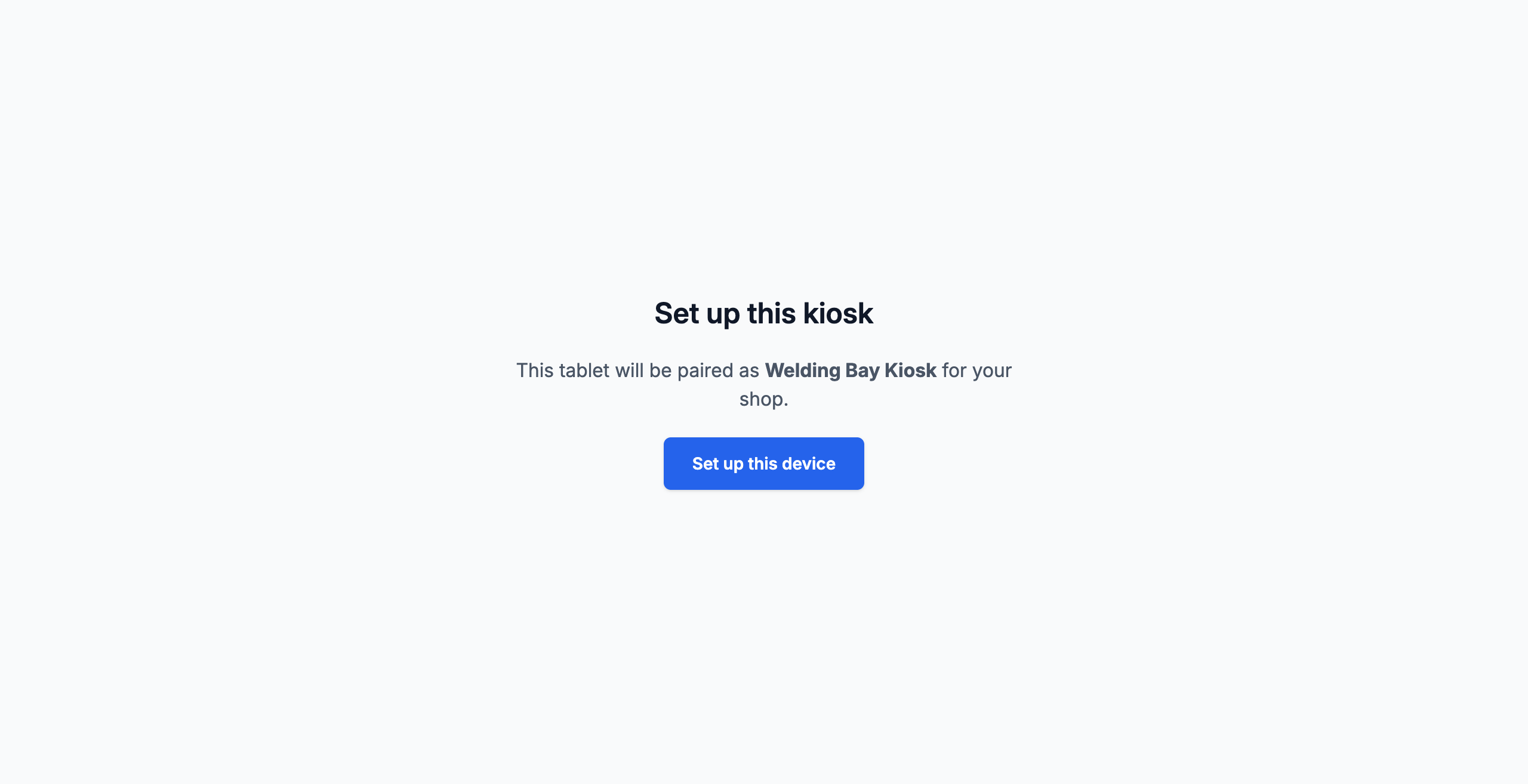
Tap Set up this device.
The tablet is now paired. It shows the worker list, ready for shift starts.
You can confirm pairing succeeded by going back to Admin → Settings → Devices on your computer — the new device should be listed under Kiosk devices with a green Connected badge.
Step 7. Lock it to the kiosk app (optional but recommended)
By default a worker could tap the home button and back out of the kiosk into the Android home screen. Android's built-in Screen Pinning prevents that. It pins one app on the screen until you unpin it with a PIN or gesture.
- Open Settings → Security → Other security settings → App pinning (the exact path varies by manufacturer — on Samsung it's Security and privacy → More security settings → Pin Windows).
- Turn App pinning on.
- Turn on Ask for PIN before unpinning (or fingerprint/pattern).
- Open the FabWise Kiosk app from the home screen.
- Tap the recent apps button (the square at the bottom of the screen).
- Tap the FabWise Kiosk icon at the top of its tile and choose Pin.
The kiosk is now pinned. Workers can tap and clock in freely; backing out requires the unpinning PIN.
To unpin (for an admin doing maintenance): hold the back and recent-apps buttons together, then enter the PIN.
Step 8. Mount the tablet
Where you mount the tablet matters for daily use:
- Eye level for the shortest worker on the team. A tablet mounted too high makes tapping uncomfortable.
- Within reach of a power outlet. A short, hidden charging cable looks better and lasts longer than a long visible one.
- Out of direct sunlight. Glare makes the screen unreadable and overheats the tablet.
- Away from welding sparks, coolant spray, and grinding debris. Common sense, but worth saying.
VESA-mount wall brackets, locking enclosures, and counter stands all work. Pick the one that matches your shop's environment.
Step 9. Final check
Before you call it done:
- [ ] Tablet is plugged in and charging
- [ ] Screen stays on after 15 minutes of inactivity
- [ ] Screen is in the correct orientation (landscape, or whatever your mount needs)
- [ ] FabWise Kiosk app launches full-screen, no Chrome address bar
- [ ] Workers can enter a PIN and start a shift
- [ ] Admin → Settings → Devices shows the tablet as Connected
- [ ] Screen pinning is on (if you enabled it)
- [ ] Do Not Disturb is on
- [ ] Auto-rotate is off
If any of those don't pass, go back to the step that covers it.
Troubleshooting
The screen still turns off
Check these in order:
- Is the tablet actually charging? "Stay awake while charging" only applies while power is connected. A loose cable or dead outlet drops the tablet back to the regular screen timeout.
- Did Developer Options reset? A small number of tablets reset the Stay awake toggle after a restart. Re-enable it.
- Is the kiosk in the foreground? If a worker switched to another app and walked away, the kiosk's screen-on request pauses. The Android Stay awake setting still holds the screen on while charging.
The kiosk got closed and now shows the Android home screen
Tap the FabWise Kiosk icon on the home screen to relaunch. If this keeps happening, turn on Screen Pinning (Step 7).
The setup QR code says "expired" or "invalid"
Setup QR codes expire after 24 hours and can only be used once. Generate a new one in Admin → Settings → Devices → Add Kiosk Device, and scan the new code on the tablet.
The tablet shows "No internet connection"
Reconnect to Wi-Fi: Settings → Network → Wi-Fi → select your network → re-enter the password if asked.
A worker can't start a shift, but the kiosk loads
This is a worker permission or PIN issue, not a tablet setup issue. Check the worker's profile in Admin → Users.
I need to unpair this tablet from my account
In Admin → Settings → Devices, find the tablet and tap Revoke. The tablet will return to the pairing screen on its next use and can be re-paired (or paired to a different account).
Setting up several tablets at once
If you're provisioning more than a few tablets, the ADB command line is faster for the Developer Options part. With the tablet connected over USB and USB debugging enabled, run:
adb shell settings put global stay_on_while_plugged_in 3
The 3 means the screen stays on while charging by AC, USB, or wireless. You still have to do the Chrome + pairing steps on each tablet by hand — those can't be automated.
Where to find it
- Pairing screen on the tablet: opens automatically the first time you visit
kiosk.fabwise.app - Add Kiosk Device button: Admin → Settings → Devices
- Who can pair a device: account admins only
- Maximum kiosk devices per account: 5