
Overtime is calculated by your payroll provider, not by your time tracking system. What your time tracking system has to do is give the payroll provider accurate raw hours per worker per shift, tagged correctly. If those source hours are wrong, the overtime calculation is wrong, regardless of how good the payroll software is. This is the problem most fabrication shops don't solve, and it starts on the floor.
Why Fabrication Shops Specifically Struggle With This
Generic time tracking fails in fabrication for a structural reason: the work doesn't fit into clean, single-job blocks.
On a shop floor, a worker might spend the morning on one job, break for a rush order mid-shift, return to the original job, and cross into the next calendar day on a second-shift rotation. Workers cross between jobs multiple times in a single shift. Weekend work lands on different cost centers than weekday production. Some shops run overlapping shifts where one worker's clock-out triggers another's clock-in on the same job.
Each of these situations creates a gap between what the clock says and what the payroll provider needs. The payroll provider applies its overtime rule — typically 40 hours per week under FLSA, though the Department of Labor's overtime requirements also cover daily thresholds in some states and collective bargaining agreements — to whatever hour totals you give it. If those totals came from a paper card that captured a shift as one block, or from a system where workers manually entered hours at end of day, the inputs are imprecise.
The result is overtime miscalculation — not because the payroll software is wrong, but because the source data was.
What Accurate Source Data Looks Like
Accurate overtime tracking starts with accurate shift records. Specifically, each shift record needs:
- Worker identity — who worked, with no ambiguity
- Clock-in and clock-out timestamps — to the minute, not estimated or rounded at capture (rounding for payroll is a separate, configurable step)
- Job attribution — which job each work segment went to
- Meal break declaration — whether a meal break occurred during the shift, so total worked time is correct
The last two matter more than most shops realize. Job attribution is critical for shops running cost-plus jobs or tracking labor against estimates. But even for pure payroll purposes, the meal break record is where errors hide.
A worker who works through a scheduled 30-minute lunch but doesn't flag it has effectively worked 30 more minutes than the payroll system knows about. Multiply that across 20 workers over a week, and you have material payroll error — not overtime that was worked but not paid, which creates compliance exposure, but overtime that wasn't paid because it wasn't recorded.
According to the Bureau of Labor Statistics, fabrication and manufacturing workers are more likely to work overtime hours than workers in most other sectors. Getting the source records right matters here more than in a typical office environment.
The Multi-Job Shift Problem
Most overtime tracking articles focus on the payroll calculation side. The issue fabrication shops actually face is upstream: the clock doesn't start over when a worker switches jobs.
When a worker clocks in at 7am on Job A, switches to Job B at 10am, and clocks out at 3:30pm, that's one shift — but it contains two work segments that should be separately attributed. If your system only captures the shift as a whole, you've lost the job attribution for 3.5 hours. If your system doesn't handle mid-shift job switches, workers end up logging the dominant job and absorbing the minority hours as untracked time.
The right model: each job switch creates a new segment record with its own start and end time. The shift total is the sum of all segments. That shift total is what flows to payroll — and it's accurate because it includes every segment, not just the primary one.
FabWise's labor tracking is built around this model. Workers clock in to a job, clock out when they switch, clock into the next job. Each segment is timestamped independently. The shift total is computed from the segments, not entered as a single block.
Split Days and Weekend Work
Weekend work and overnight shifts create a second category of source data errors. A worker who starts a shift at 11pm Friday and clocks out at 7am Saturday has hours that cross a day boundary. If your system assigns all those hours to Friday, the weekly total is distorted. If it assigns them all to Saturday, same problem in the other direction.
FabWise assigns hours to the shift date — the date the shift started — and records exact timestamps for clock-in and clock-out. The payroll export totals those hours per pay period rather than reconstructing a daily figure after the fact; the underlying timestamps stay in FabWise, where the audit trail lives. Your payroll provider applies its overtime calculation to correct weekly totals.
For shops running 4/10 schedules or rotating weekend shifts, this distinction is significant. A 4/10 schedule generates 10 hours per day, 40 per week — right at the FLSA threshold. Any error in source records can push a worker over or under in ways that affect overtime pay.
What FabWise Does — and Doesn't Do
FabWise captures accurate time records. It does not classify overtime, calculate overtime pay, or enforce labor law compliance. That is your payroll provider's job.
What FabWise does:
- Records clock-in and clock-out for every shift, with exact timestamps
- Handles multi-job shifts with per-segment job attribution
- Captures meal break declarations at clock-out, so worked time is accurate
- Applies configurable time rounding (5, 6, 10, 15, or 30 minutes) to the export — without altering the raw timestamps
- Generates a payroll-ready CSV that imports into any system that takes one
What FabWise does not do:
- Calculate overtime pay or classify hours as overtime
- Apply FLSA rules, state overtime thresholds, or union contract rules
- Replace your payroll provider's compliance function
The payroll export delivers accurate, complete hour totals per worker per period. Your payroll provider takes it from there.
Supervisor Review Before Export
The final step before your payroll export is supervisor review — a pass through all shifts in the period to catch anything the automated record missed.
FabWise flags specific conditions for review: workers who clocked in but have no clock-out (forgot to clock out at end of shift), meal break declarations that don't match the schedule, and unusual shift lengths. Supervisors can attach a correction to any record, noting the adjusted value and reason. The original capture is preserved. The correction is a separate event with its own actor and timestamp.
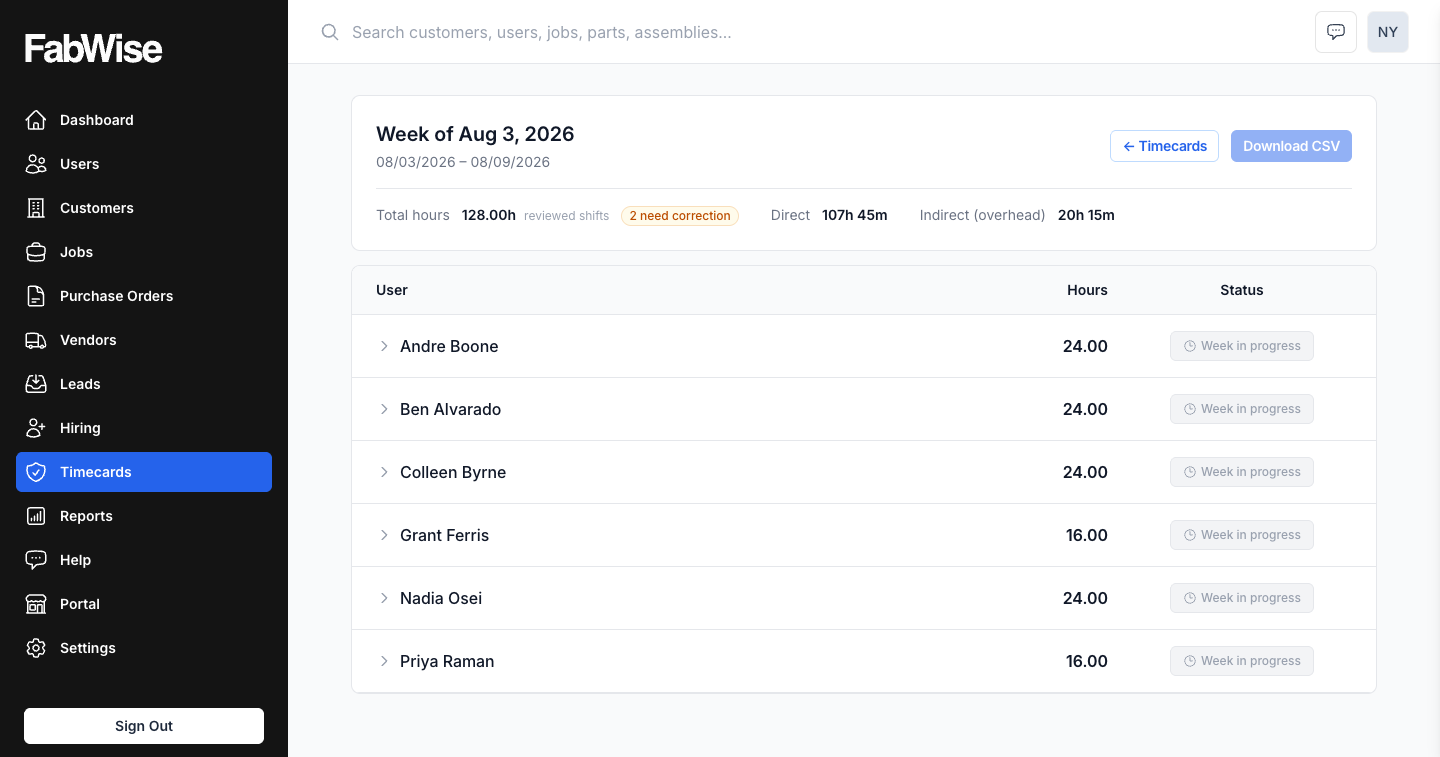
This matters for overtime accuracy because the most common payroll errors come from missed clock-outs and unrecorded meal breaks — both of which directly affect total hours worked. Catching them during the period, not after payroll runs, keeps the correction on the right side of the pay date.
From review to export, the workflow is: supervisors review and correct flagged records, the admin approves the pay period, the export is generated and uploaded to the payroll provider. FabWise's shop floor time tracking glossary entry covers the terminology in more detail.
The Practical Takeaway
If your payroll provider is miscalculating overtime, and your rates and classifications are configured correctly, the problem is probably in the source data. Time cards that capture a single block per shift, systems that don't handle mid-shift job switches, and processes that rely on workers remembering and entering their hours manually all introduce the same class of error.
The fix isn't a better overtime calculator. It's accurate source records — captured at the moment the work happens, by the worker doing it, with job and task attribution that eliminates the reconstruction step.
That's what FabWise captures. Your payroll provider handles the overtime from there.