
Give a worker a tablet, scan one QR code, and hand it over. From then on there is no sign-in, no password, and nothing for them to remember — the device itself is bound to the person.
That single design choice is what makes per-worker time tracking survive contact with a shop floor.
Passwords Are Why Per-Worker Tracking Usually Fails
Shops that try to track time per worker on individual devices almost always hit the same wall, and it is not the hardware.
It is that a password on a shop floor does not work. People forget them. Gloves make typing miserable. Someone writes theirs on the wall and now four people share it. Somebody gets locked out mid-shift and the supervisor spends ten minutes on a reset instead of running the floor.
Within a month the shop has either abandoned per-worker tracking or quietly consolidated onto one shared login — at which point the data no longer says who did what, and the whole reason for doing it is gone.
The problem was never that workers cannot use technology. It is that credential-based auth is a bad fit for people with dirty hands and no desk.
Binding the Device Instead
FabWise moves the identity onto the device.
From a worker's profile you open the Devices tab and start Workstation setup. The tablet scans a QR code, shows a confirm screen with the worker's name, and you tap to bind it. The device is now that worker's.
They pick it up and it is already them. Nothing to type.
What That Changes Day to Day
Nothing to forget. No password, so no resets, no lockouts, no supervisor pulled off the floor to fix an account.
Gloves are irrelevant. The interaction is tapping, not typing.
The data actually says who. Because the device is one person's, every clock-in and every task lands on the right worker without anyone choosing a name from a list — which is where shared terminals get their attribution errors.
Revoking Is One Click
Device-bound identity raises a fair question: what happens when the device walks off, or the worker does?
You open the worker's profile, find the device in the Workstation card, and click Revoke. It stops working for Workstation immediately.
If someone is leaving the company, you also set their status to Inactive on the profile. Two actions, both in the same place, both instant.
This is worth comparing to the shared-password alternative honestly. When someone leaves a shop running one shared login, the correct response is to change the password and redistribute it to everyone — which is why it usually does not happen, and why shared credentials outlive the people who knew them. Revoking one device changes nothing for anyone else.
What a Worker Sees On It
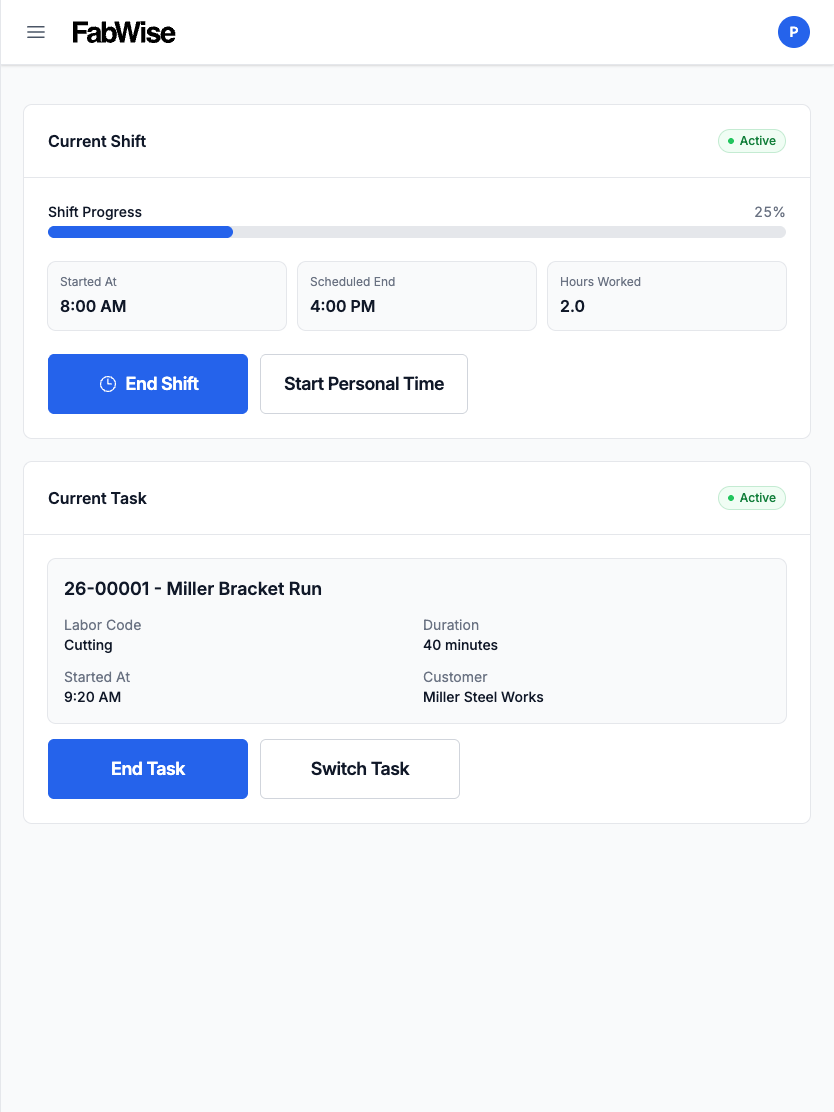
The tablet is their whole interface: the shift as it runs, the jobs and tasks they are on, and messages from the office.
It installs to the tablet's home screen and opens full-screen — no browser bar, no app store, no account setup. From the worker's side it is simply the shop's app.
Prerequisites, Plainly
- The worker needs Kiosk access enabled on their profile — Workstation is for time-tracked workers
- Workstation is available on Professional plans
The hardware is ordinary. Any Android or Apple tablet works; nothing rugged or specialized is required beyond a case you would want on a shop floor anyway.
Where It Fits
The shared kiosk answers is the crew here. Workstation answers who is on what, and it is the surface that makes labor land against specific jobs rather than into a general bucket.
Both capture into the same record. The difference is how much detail the shop wants, and whether each worker has a screen of their own.